

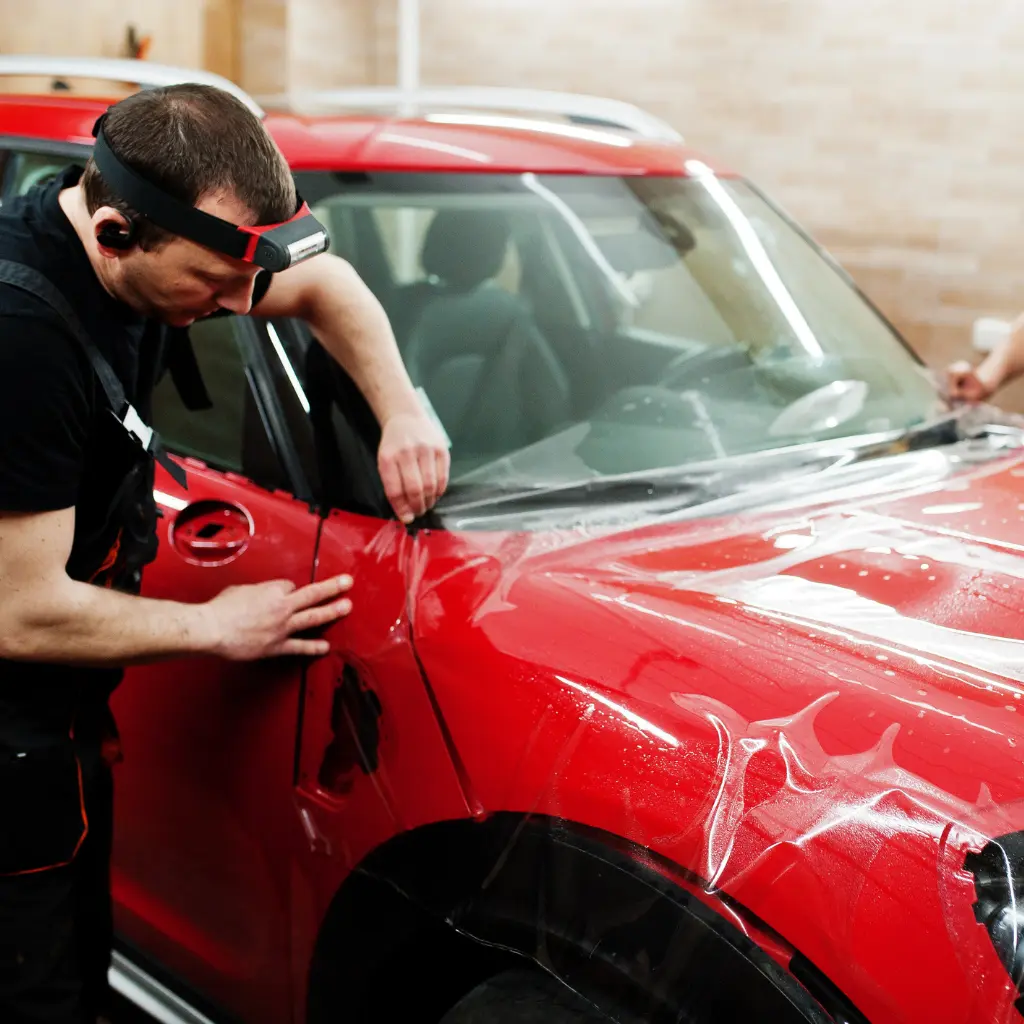
Expert Tips for Designing Eye-Catching Vehicle Wraps
Achieving a great vehicle wrap design is entirely possible once you understand the process. Many business owners and car enthusiasts create effective designs themselves by following a clear workflow and using the right tools.
The difference between a wrap that turns heads and one that falls flat comes down to understanding design principles, using proper software, and knowing the technical requirements before you start. This guide walks you through exactly how to design a car wrap that works, from initial concept to print-ready files.
Best Vehicle Wrap Design Software
Your software choice determines how efficiently you can work and what level of control you have over your design. Here’s what works for vehicle wrap design:
| Software | Best For | Approximate Cost | Key Strengths |
| Adobe Illustrator | Professional designs | £19.97/month | Vector precision, industry standard, template compatibility |
| CorelDRAW | Sign industry professionals | £20/month or £579 one-time | Vehicle templates, sign-specific tools, strong text handling |
| Affinity Designer | Budget-conscious designers | £59.99 one-time | No subscription, full vector capabilities, good performance |
| Adobe Photoshop | Photo manipulation | £19.97/month (with Illustrator) | Image editing, mockups, colour correction |
Note: Costs are estimates and may vary. Prices shown are typical UK subscription or purchase costs.
Adobe Illustrator dominates professional vehicle wrap design because it handles vector graphics precisely. Vectors scale infinitely without losing quality, which is essential when your design stretches across several metres of vehicle surface. Understanding how car wraps work at a technical level helps you appreciate why vector precision matters so much during the design stage. The software also works seamlessly with vehicle templates, which you’ll need for accurate design placement.
CorelDRAW has a strong following in the signage industry. It includes vehicle-specific features and handles text particularly well, which matters when you’re working with contact details and slogans that need to remain sharp and readable.
Affinity Designer offers a cost-effective alternative without ongoing subscriptions. The one-time purchase makes it attractive for occasional designers, though you’ll miss some industry-standard features that professional wrap installers expect. Before committing to software, it’s worth understanding the pros and cons of vehicle wraps so your design decisions align with what the material can realistically achieve.
You’ll likely need both vector software (Illustrator or CorelDRAW) and photo editing software (Photoshop) for complete control. Vector software handles logos, text, and graphics. Photo editing software prepares images, creates mockups, and manages colour profiles.
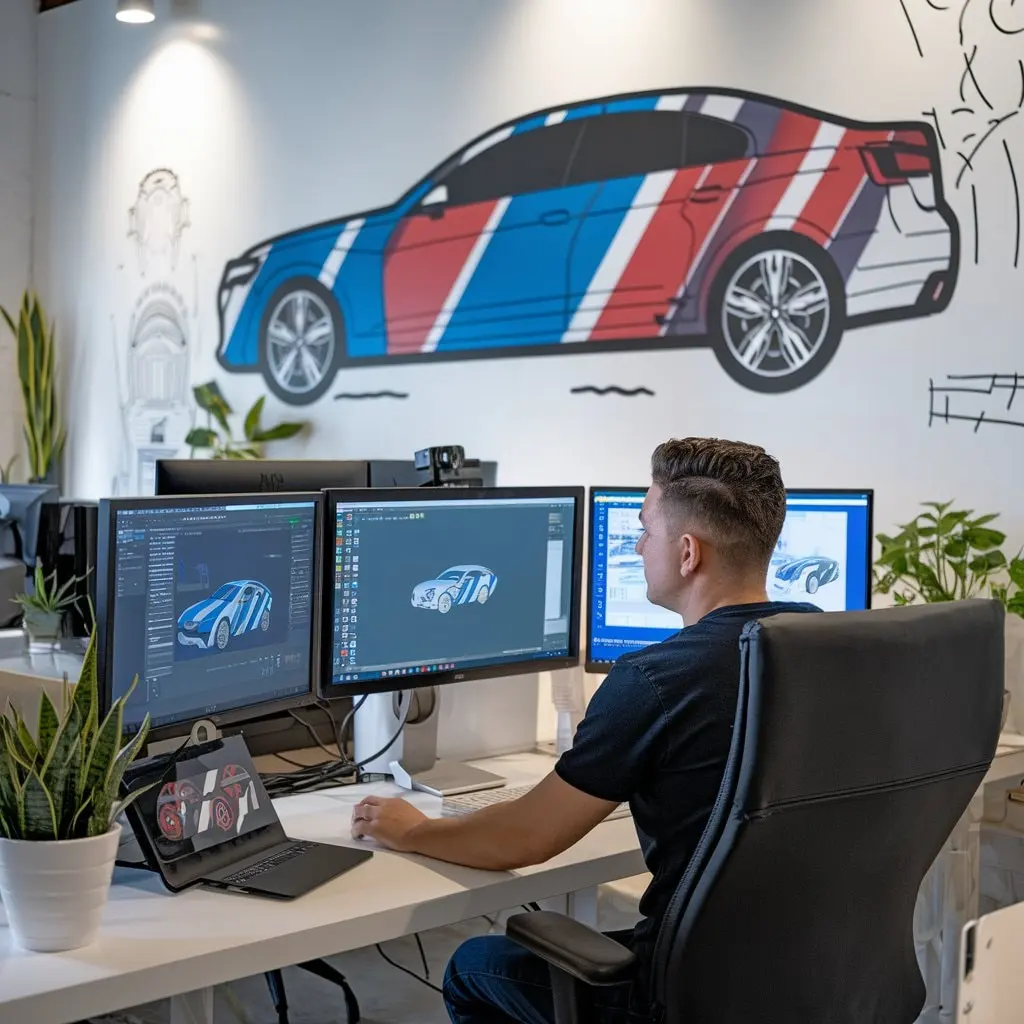
How to Design a Car Wrap: Step-by-Step Process
Step 1: Obtain Accurate Vehicle Templates
Start with a precise template for your specific vehicle make and model. These templates show the exact dimensions and contours of each panel, including doors, bonnet, roof, and bumpers. Without accurate templates, your design won’t align properly when installed.
Most vinyl suppliers provide template libraries. Download the template that matches your vehicle year and model exactly. Import this into your design software as a locked background layer. This becomes your positioning guide throughout the design process.
Step 2: Set Up Your Design File Correctly
Create your working file at full scale (1:1 ratio). Vehicle wraps print at actual size, so designing at full scale ensures accurate spacing and text sizing. Set your colour mode to CMYK, not RGB, as this matches how commercial printers reproduce colour. RGB colours won’t reproduce accurately in print, so converting early prevents colour shifts later.
Work in layers. Keep your template on the bottom layer (locked), create separate layers for background graphics, main design elements, text, and bleed areas. This organisation makes editing specific elements much easier later.
Set up guides for safe zones. Nothing critical, such as phone numbers or key messaging, should sit within 50mm of panel edges, door handles, or other obstacles. These zones experience stress during installation and may not adhere perfectly.
Step 3: Design Your Layout
Start with your largest visual elements first. Place your main brand colours, background graphics, or photographic elements. Think about how these work across the vehicle’s three-dimensional form, as designs need to flow around curves and across panel breaks.
Add your logo in strategic positions. The rear and side panels get the most viewing time, so prioritise these areas. Thoughtful branded vehicle signage ensures key elements remain legible from 10–15 metres away, which is the typical distance people view vehicles from.
Place text elements last. Contact details, website URLs, and taglines need maximum legibility. Use fonts that remain clear even at distance. Avoid thin or decorative typefaces for essential information.
Step 4: Consider Vehicle Contours and Create Mockups
Flat designs don’t translate directly to curved surfaces. Door handles, mirrors, wheel arches, and body lines all interrupt your design. Use your template to identify these features and design around them. Place important visual elements on flat panels rather than curved areas. Faces, logos, and detailed graphics distort when wrapped around complex curves. It is also worth considering car wrap paint damage at this stage, as poor design placement around stress points can affect both the wrap and the paintwork underneath.
Create photographic mockups by overlaying your design onto actual vehicle photos. This reveals how graphics will appear on the finished wrap and highlights any problem areas before printing. These mockups also help clients visualise the final result far better than flat designs alone.
Step 5: Prepare Print-Ready Files
Add 50-75mm bleed beyond the template edges. This extra material ensures complete coverage during installation, even if the wrap shifts slightly. Convert all text to outlines (create outlines/convert to curves) so fonts render correctly regardless of what fonts the printer has installed.
Embed all images at 150dpi minimum when measured at their final printed size. Vehicle wraps are viewed from distance, so higher resolution creates unnecessarily large files without visible benefit.
Save your final files in the format your printer requests, typically PDF or AI (Adobe Illustrator) format. Check with your printer for their specific requirements before you start. Some prefer individual panel files; others want a single file with all panels.
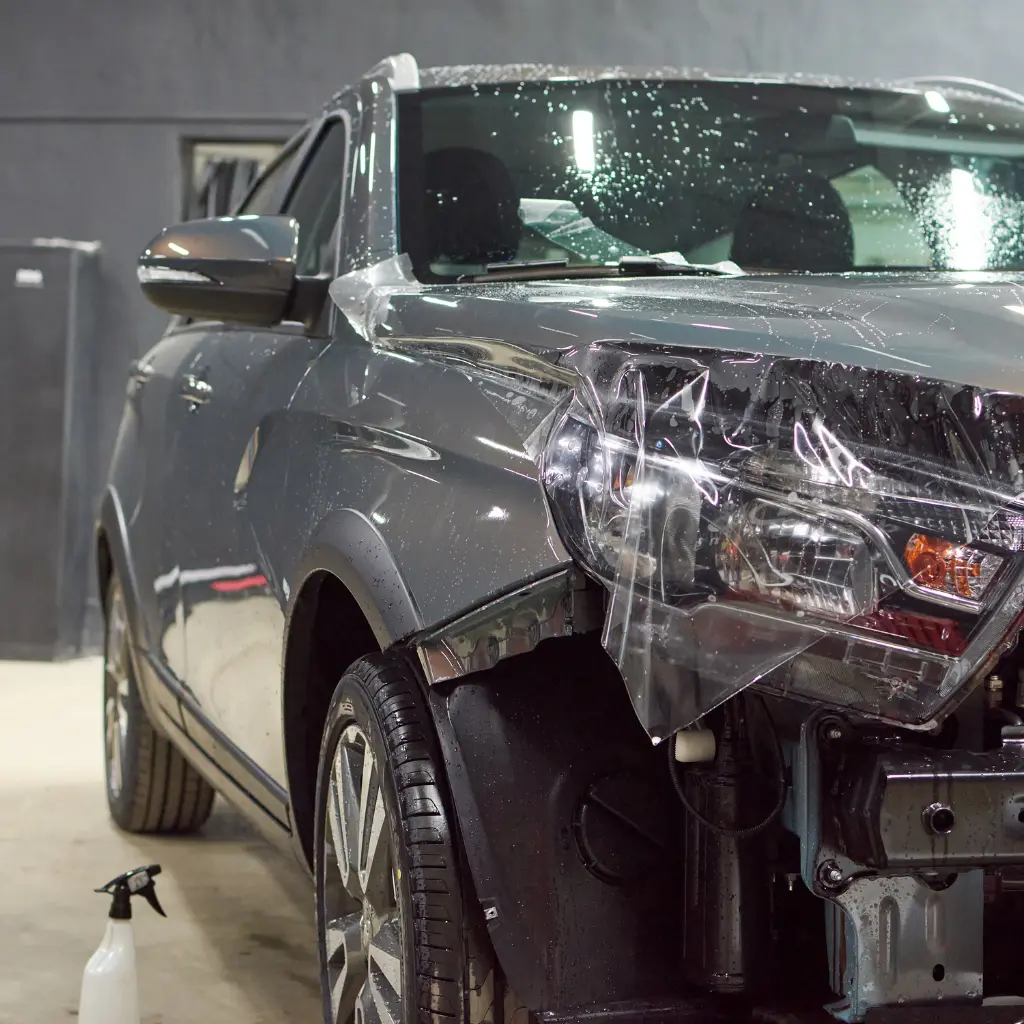
Some Tips for Designing Effective Vehicle Wraps
Use High-Contrast Colour Combinations
High-contrast colour combinations create maximum visibility. Dark text on light backgrounds (or vice versa) remains readable in varying light conditions and from different angles. Avoid low-contrast pairings like light blue on white or dark blue on black.
Consider how colours appear in motion. Vibrant colours attract attention, but they need to support your message rather than overwhelming it. Your brand guidelines should drive colour choices, but visibility takes priority over exact colour matching when needed.
Choose Typography Carefully
Sans-serif fonts work best for vehicle wraps. They remain legible from distance and at speed. Minimum text height should be 75mm for phone numbers and 50mm for website addresses when you want them readable from 10 metres away.
Avoid ALL CAPS for extended text, as it’s harder to read. Use it sparingly for emphasis. Letter spacing (tracking) often needs adjustment at large sizes. Tighten tracking slightly on very large headlines to improve visual cohesion.
Ensure Images Are High Quality
Images must be high resolution at their final printed size. A photo that looks sharp on screen may pixelate when printed at 2 metres wide. Always check image resolution at actual size before finalising your design.
Maintain Brand Consistency
Your vehicle wrap should align with other marketing materials. Use the same logo treatment, colour palette, and messaging hierarchy you use elsewhere. The vehicle becomes a mobile extension of your brand, so consistency reinforces recognition.
Simplify Complex Graphics for Curves
When intricate patterns need to wrap around curves, simplify the design in that area. Use solid colours or simple gradients where the vinyl will stretch significantly. Design complex graphics to work with vehicle contours rather than fighting them.
Request a Printed Proof
For colour-critical work, request a small printed sample. On-screen colours never match printed colours exactly. A proof lets you verify colours before committing to the full wrap, preventing disappointment with the final result.
Common Design Challenges and Solutions
Alignment Issues
Misalignment usually stems from working without accurate templates or ignoring panel breaks. Check that your template matches the exact year and trim level of the vehicle being wrapped, even minor body changes affect fit. If elements don’t align properly during the design phase, adjust them before printing.
Managing Client Expectations
Show clients realistic mockups early in the process. Explain limitations clearly, noting that some design ideas that work on flat surfaces don’t translate to three-dimensional vehicle forms. Managing expectations early prevents disappointment when the wrap goes on the vehicle.
Working With Vinyl Finishes
Premium cast vinyl conforms to curves better and lasts longer than calendared vinyl. Gloss finishes make colours vibrant. Matte finishes create sophisticated looks. Your vinyl choice directly affects how long vehicle wrapping lasts, so consider the intended finish and durability during the design phase rather than as an afterthought.
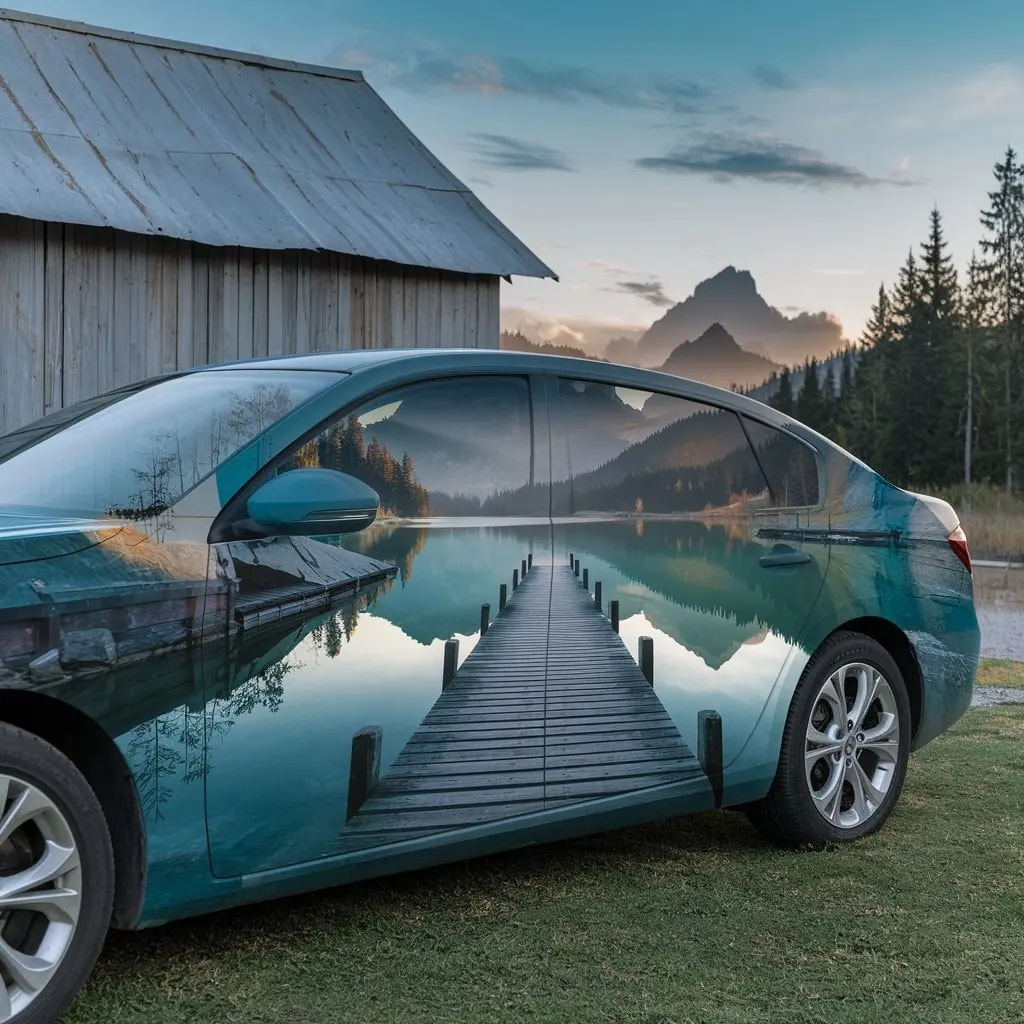
Frequently Asked Questions
1. What software do I need to design car wraps?
Adobe Illustrator is the industry standard for vehicle wrap design because it handles vector graphics at any scale without quality loss. You’ll also benefit from Adobe Photoshop for image editing. Alternatively, CorelDRAW offers strong sign-industry features, whilst Affinity Designer provides a budget-friendly option without subscriptions.
2. How do I get vehicle templates for my designs?
Download templates from vinyl suppliers, vehicle wrap template libraries, or request them from your printing company. Always use templates specific to your exact vehicle make, model, and year—even small body differences affect fit.
3. What file format do printers need?
Most printers accept PDF or Adobe Illustrator (AI) files. Always convert text to outlines and embed all images. Confirming specific requirements before starting saves revision time later.
4. How do I design for vehicle curves and contours?
Use your vehicle template to identify curves, door handles, mirrors, and body lines. Keep complex graphics on flat panels. Simplify designs in areas that will stretch during installation. Photographic mockups help visualise how your design works across the three-dimensional vehicle form.
5. What’s the difference between designing for cars versus vans or trucks?
Vans and trucks offer much larger, flatter side panels that are ideal for detailed graphics and messaging. Cars have more curves and smaller panels, requiring simpler, bolder designs. For inspiration, explore creative van wrap ideas to see how effective large-format designs can be adapted across different vehicle types.
6. What resolution and bleed should I use?
Images should be at least 150dpi when measured at their final printed size. Add 50-75mm bleed beyond the template edges. Keep all critical elements within safe zones at least 50mm inside panel edges to avoid stress areas during installation.
7. How can I ensure colours print accurately?
Work in CMYK colour space from the start. If you must convert RGB images to CMYK, do this early and check how colours shift, as some RGB colours can’t be reproduced in CMYK. Request a printed proof for colour-critical work before committing to the full wrap.
Getting Your Design Into Production
Once your design is complete, work closely with your printing company to confirm file specifications and flag any technical issues. Professional vehicle wrap printing typically costs £500-£2,000+ depending on vehicle size, vinyl quality, and design complexity (costs vary significantly based on specifications and provider). At Magenta Signs Ltd, we work with clients on both design and installation, ensuring the transition from digital file to finished vehicle wrap goes smoothly. Addressing technical questions during the design phase prevents costly reprints and ensures the final result matches expectations. Master the software, understand the specifications, and consult with experienced installers when needed. Getting input before printing saves both time and money. If you want to take things further, learning about branding your vehicle effectively will help you build a consistent and impactful presence across every panel.